
How to Make a Drake Burning Bridges AI Video from One Photo
Upload one photo, choose 768P or 2K, and generate a 15-second Drake-inspired Burning Bridges AI video with the original soundtrack. Step by step, with a real result, its cost and its generation time.
You can make a Drake-inspired Burning Bridges AI video on drakeburningbridgesai.org with a single photo. Upload a clear photo of yourself, choose 768P or 2K, sign in and select Generate. In about 15 minutes you get a 15-second landscape MP4: your face, hair and visible outfit take the lead's place in the chandelier-lit party scene, and the video carries the original 15-second soundtrack. A 768P video uses 40 credits, which is exactly what the $6.90 Starter pack contains.
This guide walks through every step using a real video we generated with the same workspace on October 10, 2026, including its input photo, settings, cost and timing.
What you need
- One lead photo. A clear photo of yourself, your pet, or an adult who has agreed to appear. JPG, PNG or WebP, up to 40 MB, at least 256 × 256 px.
- An account with credits. 40 credits for a 768P video or 65 credits for 2K.
- Optional extras. Up to five separate friend portraits and one scene photo. They don't change the price.
You don't need a photo of Drake, a prompt, or any editing software.
Step 1: Upload your lead photo
Open the workspace and drop your photo into the upload box, or choose a file. The photo is prepared in your browser and appears as a preview. You can replace or remove it before you generate.
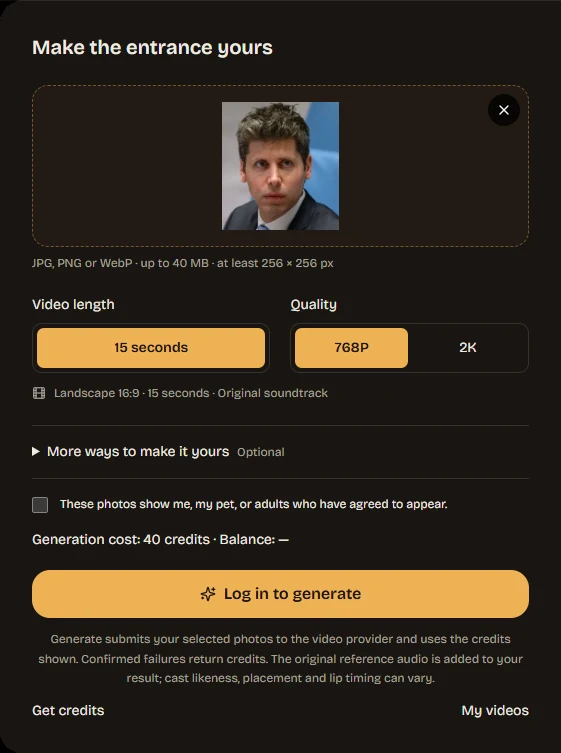
The AI uses your face, hair and visible outfit. Everything else, including the pose, the gestures, the cup, the room and the camera moves, comes from the reference performance. A sharp, evenly lit photo with your whole face visible works best. If your outfit matters, include your shoulders or upper body. Our photo guide explains which photos work best and why.
Step 2: Choose 768P or 2K
The length is fixed at 15 seconds, and the format line under the controls reads Landscape 16:9 · 15 seconds · Original soundtrack. Pick the quality:
- 768P: 40 credits. Our measured result was 1344 × 768 at 24 fps.
- 2K: 65 credits. The site checks that a 2K result is at least 1440 px tall before saving it.
The cost line above the Generate button updates as you switch.
Step 3: Add friends or a scene (optional)
Open More ways to make it yours to add up to five friend portraits, one person per photo. Friend 1 replaces the first background guest who appears in the reference, friend 2 the next one, and so on. You can also add a scene photo to change the room; people in that photo are not added to your cast. Leave this closed for a lead-only video.
The full walkthrough, including how to order friends, is in How to Add Friends to a Burning Bridges AI Video.
Step 4: Confirm and generate
Tick the box that confirms these photos show me, my pet, or adults who have agreed to appear, then check the cost line. Select Generate. If you're signed out, the button reads Log in to generate; if your balance is too low, use Get credits.
When you generate, your selected photos are sent to the video provider to create your video. Before that point, they stay in your browser.
Step 5: Wait, preview and download
The workspace shows the stage your video is in:
- Uploading your references
- Waiting in the generation queue
- Creating your video
- Adding original audio and saving your video
Our measured 768P video took 949 seconds, about 16 minutes, from submission to a saved file. Busy queues take longer. You can close the page: the task keeps running and the finished video appears in My videos, where you can preview and download it again later. When the video is ready, the workspace shows it with a Download video button.
If a task is confirmed as failed, the reserved credits go back to your balance automatically.
A real result: input, settings and output
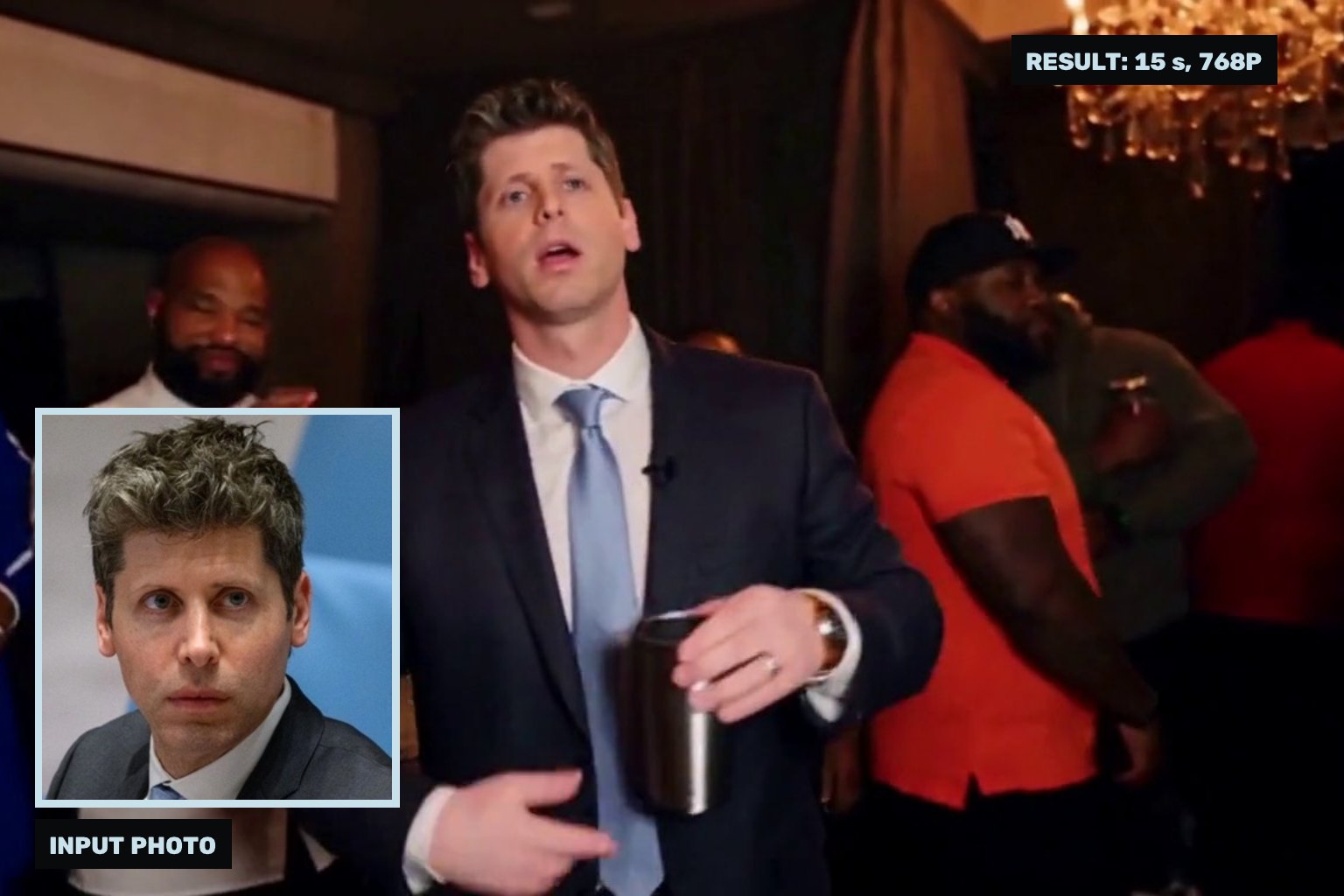
This is the unedited video, generated from the photo in the cover image above with no friends and no scene photo.
| Setting | Value |
|---|---|
| Input | One head-and-shoulders photo |
| Friend photos / scene | None / none |
| Quality | 768P, delivered as 1344 × 768 at 24 fps |
| Length | 15.08 seconds |
| Audio | Original 15-second reference soundtrack |
| Credits used | 40 |
| Generation time | 949 seconds (about 16 minutes) |
| Retries / editing | None / none |
What carried over: the hair and the outfit visible in the photo (dark jacket, white shirt, light-blue tie) stay consistent from the close-ups to the wide shots. What the AI filled in: the photo only shows the collar and shoulders, so the rest of the suit, the trousers and the hands were generated, and a small clip-on microphone that isn't in the photo appears in several shots. The background guests are unchanged because no friend photos were added.
See the input photo, extra frames and every setting on the real result page.
What it costs
Every video costs the same whether or not you add friends or a scene: 40 credits at 768P or 65 credits at 2K. Credits come in one-time packs, with no subscription:
| Pack | Price | Credits | Videos |
|---|---|---|---|
| Starter | $6.90 | 40 | 1 at 768P |
| Creator | $14.90 | 120 | 3 at 768P, or 1 at 2K plus 1 at 768P |
| Studio | $39.90 | 400 | 10 at 768P, or 6 at 2K |
Pack credits don't expire, and you can mix 768P and 2K as your balance allows. See pricing for details.
Posting it on TikTok or Reels
The video is landscape, and there is no 9:16 option yet. You can post it as is, place it on a vertical canvas with a blurred background, or crop it. Our guide to posting a Burning Bridges AI video on TikTok, Reels and Shorts compares the three options.
Is this the official Drake video?
No. Burning Bridges AI is an independent tool. It is not affiliated with or endorsed by Drake. Use photos you have the right to use, and review likeness and lip timing before you share the result.
Ready? Open the workspace and upload your photo.