
How to Plan a Burning Bridges AI Video with Your Own Cast
Plan a Drake-inspired Burning Bridges AI video with a clear lead photo and a supporting cast. Explore video examples and prepare your own look.
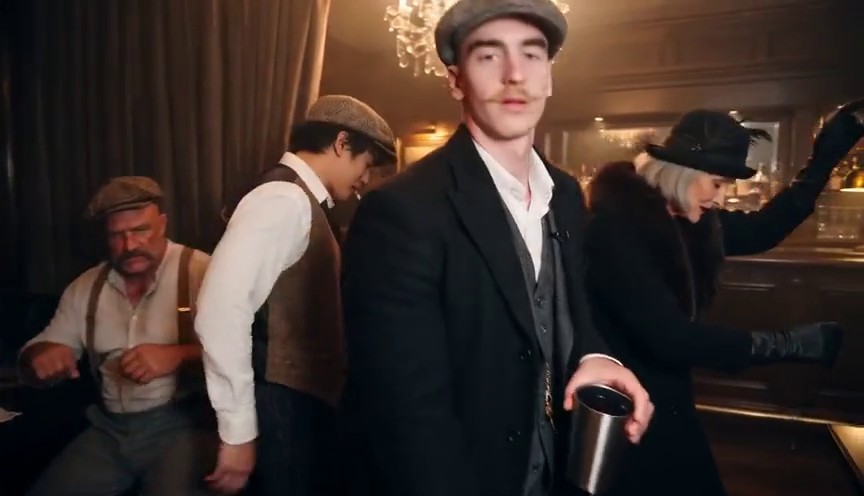
Planning a Burning Bridges AI video starts with the cast. The Drake Burning Bridges scene provides the creative reference: a crowded party, warm lights, and a lead facing a moving camera. A different outfit, expression, or supporting crew gives your version its own direction.
Start with a face you can see
Choose one person or pet per photo. Look for even lighting, sharp eyes, and enough room around the head and shoulders. Skip heavy filters, dark sunglasses, and distant group shots. Use photos of yourself, your pets, or adults who have agreed to appear.
Let the outfit carry the character
A flat cap suggests a period pub. A sweater vest brings office energy. In the video examples, a recognizable outfit helps distinguish the lead as the camera moves. Choose one strong visual idea instead of competing accessories that hide the face.
Give your friends their own photos
The workspace has room for up to five friend portraits. Add them separately and use the arrows to put them in order. A shared color or dress style can make the crew feel connected without making everyone look identical.
Watch the cast in motion
When looking for a Drake AI video idea, watch more than the first frame. Notice the lead in close-up, hands crossing the face, and friends overlapping in the background. These moments can change how a character reads. The examples offer inspiration, not a guarantee of an exact likeness or consistent fine details.
Explore before generating
The workspace uses a fixed 15-second landscape reference. Choose 768P or 2K, add your lead photo, and optionally include friends or a scene reference. Review the displayed credit cost before submitting. Generation may be unavailable while service setup or testing is in progress; the workspace shows its current availability.
Selecting photos prepares them in your browser. Submitting an enabled generation sends the prepared photos to the video provider. Completed results appear in My videos. AI can change faces, gestures, timing, and background details, while the finished MP4 uses the original 15-second reference soundtrack. Lip movements may not match the original audio exactly. The examples are creative references, not verified outputs from your photos or a guarantee of the same result.
Visit the workspace to try the controls, or watch the examples for more ideas.