
How to Add Friends to a Burning Bridges AI Video
Put up to five friends in the background of your Drake-inspired Burning Bridges AI video: how friend order works, which photos to use, what it costs, and what to expect.
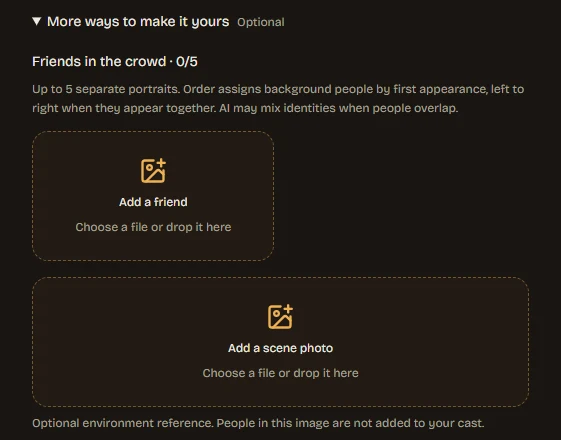
Open More ways to make it yours in the workspace and add up to five separate friend portraits. Friend 1 replaces the first background guest who appears in the reference video, friend 2 the next one, and so on. When several guests first appear at the same moment, they are assigned from left to right. Adding friends doesn't change the price: a video costs 40 credits at 768P or 65 credits at 2K either way.
How friend order works
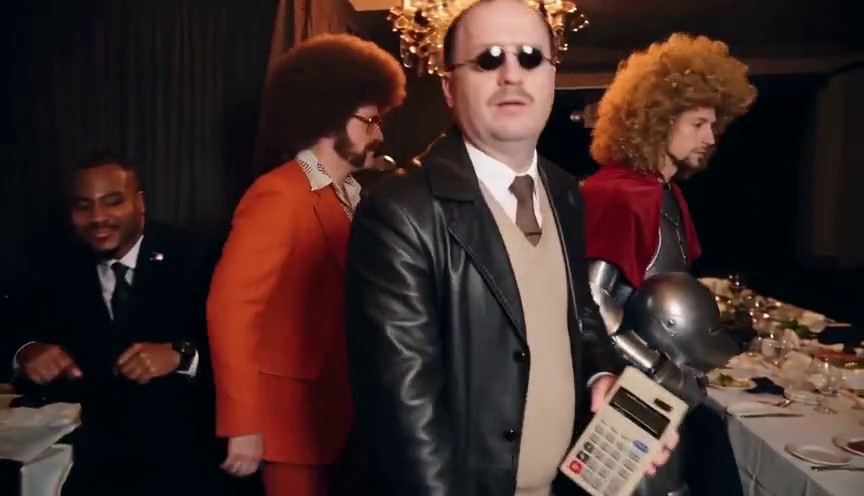
The Burning Bridges reference is a 15-second party clip with one lead in the foreground and guests around them. Your lead photo always replaces the foreground lead. Friend photos replace background guests, following three rules:
- First appearance decides the order. Friend 1 becomes the first background guest who appears in the clip, friend 2 the second, up to friend 5.
- Ties go left to right. If two guests first appear in the same frame, the one on the left is assigned first.
- Unused guests stay as they are. If you add two friends, only two guests change. The AI is told not to invent extra people to fill empty slots, and never to swap identities between the lead and the guests.
Each assigned friend is meant to keep the same identity throughout the clip, even when people move or overlap.
Step by step
- Add your lead photo first. The lead is required; friends are optional.
- Open More ways to make it yours. The panel shows Friends in the crowd with a counter from 0 to 5.
- Select Add a friend and choose one portrait per file. Repeat for up to five friends.
- Put them in order. Use the arrows to move a friend earlier or later. Replace or remove any photo before you generate.
- Optionally add a scene photo. It changes the environment only; people in the scene photo are not added to your cast.
- Confirm consent and generate. The consent box covers every photo you selected, so make sure each friend has agreed to appear.
Choosing friend photos
- One person per photo. Don't upload a group shot and hope the AI picks the right face. If the only photo you have is a group shot, crop it to one person, as long as the face stays sharp.
- Clear faces, similar quality. The same rules as the lead photo apply: even light, sharp focus, no sunglasses or heavy filters.
- A shared look tells a story. Matching colors or a common dress code, like office wear or 1920s suits, makes the crew read as a group without making everyone identical.
- Ask first. Only add people who have agreed to appear in your video.
What to expect
- Faces can blend when people overlap. The workspace warns about this, and it's most likely when guests cross in front of each other.
- Guests get less screen time than the lead. In the reference, background guests are smaller and often partly hidden, so expect less detail than you get for the lead.
- Order follows the reference. The list maps to the order in which guests first appear, not to where they stand. Reorder friends to change who replaces whom.
Our published real result uses one lead photo and no friends, so it shows what the lead looks like but not how friends come out. The crew examples below show the kind of look a coordinated cast can create.
Crew ideas from the examples
Office crew. Retro office wear on everyone turns the party into an after-work moment. See the example.
1920s gang. Flat caps and waistcoats give the whole room a period feel. See the example.
Animal crew. An animal lead with an animal crew is the most unexpected version. See the raccoon party.
Quick answers
Does adding friends cost more? No. The price depends only on quality: 40 credits at 768P, 65 at 2K.
How many friends can I add? Up to five, plus one optional scene photo.
Can a friend be a pet? The friend slots accept any clear portrait, including a pet. Results vary, especially when guests overlap.
Can I choose which guest each friend replaces? Not directly. Order follows first appearance in the reference, left to right for ties. Reordering friends is how you change who goes where.
Ready to build your crew? Open the workspace, or start with the full step-by-step guide.